2019年5月16日 星期四

[Python] 如何用 pandas-datareader 抓取台股資料

Environment : Windows + Jupyter
#需要的套件
import pandas as pd
import pandas_datareader as pdr
import datetime as datetime
import matplotlib.pyplot as plt

#國泰金控(2882)為範例
stock_number = '2882.TW'
start = datetime.datetime(2018,1,1)
end   = datetime.datetime(2018,6,1)
DataFrame = pdr.DataReader(stock_number, 'yahoo', start, end)

print DataFrame

#畫圖
fig = plt.figure(figsize=(5, 5))
AX  = fig.add_axes([0.1,0.5,1,0.2])
AX2 = fig.add_axes([0.1,0.1,1,0.2])

#表格標題
AX.set_title(stock_number)
AX2.set_title(stock_number)

#收盤價
AX.plot(DataFrame['Close'], label='Close', color='B')
#成交量
AX2.bar(DataFrame.index, DataFrame['Volume'], label='Volume', color='R')

AX.legend();
AX2.legend();

                 High        Low       Open      Close    Volume  Adj Close
Date                                                                       
2018-01-02  54.400002  53.299999  53.400002  54.200001  15815336  51.762951
2018-01-03  55.400002  54.299999  54.799999  55.200001  31833721  52.717987
2018-01-04  55.400002  54.500000  55.299999  55.400002  17321761  52.908997
2018-01-05  55.799999  55.000000  55.299999  55.700001  22221913  53.195503
2018-01-08  55.799999  55.000000  55.799999  55.700001  22253987  53.195503
2018-01-09  55.799999  55.200001  55.700001  55.799999  12742940  53.291008
2018-01-10  56.700001  55.599998  56.500000  55.599998  32365670  53.099998
2018-01-11  55.900002  55.000000  55.799999  55.400002  16238278  52.908997
2018-01-12  55.900002  55.299999  55.500000  55.599998  11693485  53.099998
2018-01-15  56.599998  55.900002  56.000000  56.500000  24899376  53.959534
2018-01-16  56.799999  56.200001  56.500000  56.599998  16594879  54.055035
2018-01-17  56.400002  55.799999  56.299999  56.299999  17042147  53.768524
2018-01-18  56.500000  55.799999  56.500000  55.900002  14582079  53.386513
2018-01-19  56.200001  55.599998  55.700001  56.000000  10183237  53.482014
2018-01-22  56.099998  55.200001  55.799999  55.599998  18754752  53.099998
2018-01-23  56.500000  55.299999  55.799999  56.000000  15109737  53.482014
2018-01-24  55.900002  55.000000  55.799999  55.700001  18367391  53.195503
2018-01-25  56.099998  55.200001  55.700001  55.599998  17297427  53.099998
2018-01-26  55.299999  54.500000  55.299999  54.700001  22318756  52.240471
2018-01-29  55.200001  54.599998  55.000000  55.200001  15710037  52.717987
2018-01-30  55.099998  54.400002  55.000000  54.400002  13049295  51.953960
2018-01-31  55.000000  53.799999  54.000000  54.599998  16946736  52.144962
2018-02-01  55.200001  54.599998  54.700001  54.799999  10666353  52.335972
2018-02-02  55.000000  54.400002  54.500000  54.700001   9381541  52.240471
2018-02-05  54.099998  53.500000  53.500000  54.099998  14671051  51.667446
2018-02-06  52.500000  50.500000  52.099998  50.799999  38452497  48.515827
2018-02-07  53.500000  52.000000  52.400002  52.700001  27209771  50.330399
2018-02-08  53.500000  52.799999  53.299999  53.299999  14356310  50.903416
2018-02-09  53.299999  52.000000  52.099998  52.799999  22072666  50.425900
2018-02-12  53.799999  53.000000  53.799999  53.000000  17578655  50.616909
...               ...        ...        ...        ...       ...        ...
2018-04-20  52.799999  52.200001  52.799999  52.500000  10233680  50.139389
2018-04-23  52.799999  52.200001  52.200001  52.500000  10406015  50.139389
2018-04-24  52.900002  52.400002  52.799999  52.500000  10370094  50.139389
2018-04-25  52.500000  51.700001  52.299999  52.200001  23868687  49.852879
2018-04-26  52.799999  52.000000  52.599998  52.799999  21040927  50.425900
2018-04-27  53.700001  53.099998  53.200001  53.500000  19589914  51.094425
2018-04-30  54.000000  53.400002  53.799999  53.500000  10100426  51.094425
2018-05-02  53.799999  53.099998  53.200001  53.500000  12811907  51.094425
2018-05-03  53.799999  52.799999  53.299999  52.900002  11531521  50.521404
2018-05-04  53.000000  52.700001  52.700001  52.799999   7078223  50.425900
2018-05-07  53.400002  52.799999  53.400002  53.000000  14149062  50.616909
2018-05-08  53.500000  52.900002  53.000000  53.500000  13892667  51.094425
2018-05-09  53.799999  53.500000  53.500000  53.599998  13431774  51.189926
2018-05-10  53.799999  53.099998  53.599998  53.299999  16613918  50.903416
2018-05-11  54.700001  53.599998  53.599998  54.599998  26920084  52.144962
2018-05-14  55.000000  54.599998  54.799999  55.000000  14683155  52.526978
2018-05-15  55.099998  54.000000  55.000000  54.000000  18238343  51.571941
2018-05-16  55.000000  54.400002  54.599998  54.900002  18765990  52.431477
2018-05-17  55.400002  54.500000  55.000000  54.900002  14350081  52.431477
2018-05-18  54.900002  54.400002  54.900002  54.400002  15288612  51.953960
2018-05-21  55.000000  54.500000  54.599998  55.000000  11385495  52.526978
2018-05-22  55.000000  54.700001  54.900002  54.700001   9028106  52.240471
2018-05-23  55.099998  53.900002  55.000000  54.000000  12280601  51.571941
2018-05-24  54.500000  54.000000  54.400002  54.200001  10071640  51.762951
2018-05-25  54.400002  53.900002  54.299999  53.900002   9832938  51.476440
2018-05-28  54.200001  53.799999  53.900002  54.099998  10468660  51.667446
2018-05-29  54.400002  53.799999  54.099998  54.099998   8982523  51.667446
2018-05-30  53.500000  52.700001  53.500000  52.900002  26424947  50.521404
2018-05-31  53.799999  53.299999  53.500000  53.599998  34098025  51.189926
2018-06-01  53.700001  53.099998  53.599998  53.500000  10980132  51.094425

[98 rows x 6 columns]
國泰金

2018年12月6日 星期四

如何刪除FileZilla的部分快速連線紀錄 ?

環境 : Windows

1.在檔案總管路徑上輸入 %AppData%

2.找到 FileZilla資料夾

具體路徑為 => C:\Users\XXXX\AppData\Roaming\FileZilla\recentservers.xml

3.刪除對應區塊的資料,然後存檔離開

<Server>
   …
</Server>

2018年5月11日 星期五

Dump BIOS Boot Order Tool in UEFI Shell

1. Download BOPx64.zip and extract zip file into your UEFI flash drive.

2. Execute the following command.

FS0:\> BOPx64.efi

Boot Order

2017年12月21日 星期四

USB Devices Scanner

1. Download USB.zip file.

https://github.com/spyker729/bohan-debug-utility/raw/master/USB.zip

2. Excute USB.efi or forward to text file.

fs0:\> USB.efi
or
fs0:\> USB.efi > usb.txt
image

~ Thanks ~


2017年12月20日 星期三

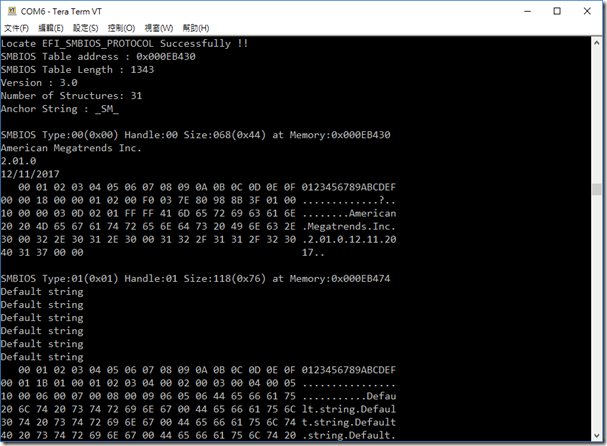
Dump SMBIOS Tools for UEFI Shell

1. Download and Extract zip file.

 https://github.com/spyker729/bohan-debug-utility/raw/master/smbios.zip

2. Excute smbios.efi

image

3. Dump and forward to text file.

fs0:\> smbios.efi > smbios.txt

smbios

How to read SMBIOS


~ Thanks ~

2015年12月24日 星期四

How to compile UDK2015 (UEFI Development Kit 2015)

If you want to complie EDK or EDK II

=> How To Build EDK & EDK II Environment In Easy Way

If you want to complie UDK2014

=> How to compile UDK2014 (UEFI Development Kit 2014) 

Download the following files :

1. Copy SVN Address for UDK2015.

http://www.tianocore.org/udk/udk2015/

image

2. Download source code using TortoiseSVN.

image

3. Follow the next steps for further compiling.

image
image
image
image
image
image
~ Thank you ~

2015年4月14日 星期二

How to Use svnsync Command to Backup SVN Repository ?


Platform : Ubuntu 14.04 LTS 64bits


1. Create a Null SVN Repository

# sudo svnadmin create Project_Name


2. Modify the content of pre-revprop-change file

# cd Project_Name/hooks/

# sudo cp  pre-revprop-change.tmpl pre-revprop-change

# sudo chmod +x pre-revprop-change

# sudo vim pre-revprop-change

=> The Last Line : exit 1

=> The Last Line : exit 0


3. Synchornize your SVN Repostiory from my google code project

# sudo svnsync init file:///home/svn/Project_Name https://bohan-debug-utility.googlecode.com/svn/ --username spyker729@gmail.com --allow-non-empty


# sudo svnsync sync file:///home/svn/Project_Name https://bohan-debug-utility.googlecode.com/svn --username spyker729@gmail.com

image

2015年4月9日 星期四

Change the Audio Output on Raspberry Pi

1. Install related package

# sudo apt-get install alsa-utils


2. Modify the audio path on Raspberry Pi

# sudo amixer cset numid=3 X


Where X is as following:

0 = Auto

1 = 3.5 mm Audio Jack

2 = HDMI


numid=1,iface=MIXER,name='Master Playback Volume'

numid=2,iface=MIXER,name='Master Playback ZC Switch'

numid=3,iface=MIXER,name='Capture Volume'

numid=4,iface=MIXER,name='Capture Switch'numid=5,iface=MIXER,name='Mic Boost (+20dB)'numid=6,iface=MIXER,name='Mic Boost2 (+20dB)'numid=7,iface=MIXER,name='Mic Switch'

numid=8,iface=MIXER,name='Sidetone Playback Volume'numid=9,iface=MIXER,name='ADC High Pass Filter Switch'

numid=10,iface=MIXER,name='Store DC Offset Switch'numid=11,iface=MIXER,name='Capture Source'numid=12,iface=MIXER,name='Playback De-emphasis'numid=13,iface=MIXER,name='Input Mux'numid=16,iface=MIXER,name='Output Mixer HiFi Playback Switch'numid=14,iface=MIXER,name='Output Mixer Line Bypass Switch'numid=15,iface=MIXER,name='Output Mixer Mic Sidetone Switch'

How to setup a VNC Server in Raspberry Pi ?

1. Install x11vnc package

# sudo apt-get install x11vnc


2. Setup your password

# x11vnc –savepasswd


3. Establish a VNC connection with 1920x1080 resolution and background execution

# x11vnc –geometry 1920x1080 –bg


4. Disconnect all of the VNC connections

# x11vnc –R stop


5. Change the the default resolution of Raspberry Pi

# vim /boot/config.txt

uncomment the ‘#’ tag in front of the following string


hdmi_force_hotplug=1

hdmi_group=2

hdmi_mode=68

hdmi_mode=1    640x350    85 Hz
hdmi_mode=2    640x400    85 Hz
hdmi_mode=3    720x400    85 Hz
hdmi_mode=4    640x480    60 Hz
hdmi_mode=5    640x480    72 Hz
hdmi_mode=6    640x480    75 Hz
hdmi_mode=7    640x480    85 Hz
hdmi_mode=8    800x600    56 Hz
hdmi_mode=9    800x600    60 Hz
hdmi_mode=10   800x600    72 Hz
hdmi_mode=11   800x600    75 Hz
hdmi_mode=12   800x600    85 Hz
hdmi_mode=13   800x600   120 Hz
hdmi_mode=14   848x480    60 Hz
hdmi_mode=15   1024x768   43 Hz  DO NOT USE
hdmi_mode=16   1024x768   60 Hz
hdmi_mode=17   1024x768   70 Hz
hdmi_mode=18   1024x768   75 Hz
hdmi_mode=19   1024x768   85 Hz
hdmi_mode=20   1024x768  120 Hz
hdmi_mode=21   1152x864   75 Hz
hdmi_mode=22   1280x768          Reduced blanking
hdmi_mode=23   1280x768   60 Hz
hdmi_mode=24   1280x768   75 Hz
hdmi_mode=25   1280x768   85 Hz
hdmi_mode=26   1280x768  120 Hz  Reduced blanking
hdmi_mode=27   1280x800          Reduced blanking
hdmi_mode=28   1280x800   60 Hz  
hdmi_mode=29   1280x800   75 Hz  
hdmi_mode=30   1280x800   85 Hz  
hdmi_mode=31   1280x800  120 Hz  Reduced blanking
hdmi_mode=32   1280x960   60 Hz  
hdmi_mode=33   1280x960   85 Hz  
hdmi_mode=34   1280x960  120 Hz  Reduced blanking
hdmi_mode=35   1280x1024  60 Hz  
hdmi_mode=36   1280x1024  75 Hz  
hdmi_mode=37   1280x1024  85 Hz  
hdmi_mode=38   1280x1024 120 Hz  Reduced blanking
hdmi_mode=39   1360x768   60 Hz  
hdmi_mode=40   1360x768  120 Hz  Reduced blanking
hdmi_mode=41   1400x1050         Reduced blanking
hdmi_mode=42   1400x1050  60 Hz  
hdmi_mode=43   1400x1050  75 Hz  
hdmi_mode=44   1400x1050  85 Hz  
hdmi_mode=45   1400x1050 120 Hz  Reduced blanking
hdmi_mode=46   1440x900          Reduced blanking
hdmi_mode=47   1440x900   60 Hz  
hdmi_mode=48   1440x900   75 Hz  
hdmi_mode=49   1440x900   85 Hz  
hdmi_mode=50   1440x900  120 Hz  Reduced blanking
hdmi_mode=51   1600x1200  60 Hz  
hdmi_mode=52   1600x1200  65 Hz  
hdmi_mode=53   1600x1200  70 Hz  
hdmi_mode=54   1600x1200  75 Hz  
hdmi_mode=55   1600x1200  85 Hz  
hdmi_mode=56   1600x1200 120 Hz  Reduced blanking
hdmi_mode=57   1680x1050         Reduced blanking
hdmi_mode=58   1680x1050  60 Hz  
hdmi_mode=59   1680x1050  75 Hz  
hdmi_mode=60   1680x1050  85 Hz  
hdmi_mode=61   1680x1050 120 Hz  Reduced blanking
hdmi_mode=62   1792x1344  60 Hz  
hdmi_mode=63   1792x1344  75 Hz  
hdmi_mode=64   1792x1344 120 Hz  Reduced blanking
hdmi_mode=65   1856x1392  60 Hz  
hdmi_mode=66   1856x1392  75 Hz  
hdmi_mode=67   1856x1392 120 Hz  Reduced blanking
hdmi_mode=68   1920x1200         Reduced blanking
hdmi_mode=69   1920x1200  60 Hz  
hdmi_mode=70   1920x1200  75 Hz  
hdmi_mode=71   1920x1200  85 Hz  
hdmi_mode=72   1920x1200 120 Hz  Reduced blanking
hdmi_mode=73   1920x1440  60 Hz  
hdmi_mode=74   1920x1440  75 Hz  
hdmi_mode=75   1920x1440 120 Hz  Reduced blanking
hdmi_mode=76   2560x1600         Reduced blanking
hdmi_mode=77   2560x1600  60 Hz  
hdmi_mode=78   2560x1600  75 Hz  
hdmi_mode=79   2560x1600  85 Hz  
hdmi_mode=80   2560x1600 120 Hz  Reduced blanking
hdmi_mode=81   1366x768   60 Hz  
hdmi_mode=82   1080p      60 Hz  
hdmi_mode=83   1600x900          Reduced blanking
hdmi_mode=84   2048x1152         Reduced blanking
hdmi_mode=85   720p       60 Hz  
hdmi_mode=86   1366x768          Reduced blanking

6. Install VNC client and connect to Raspberry Pi

YourSVNServerIP:5900

raspberry pi

Thank you.